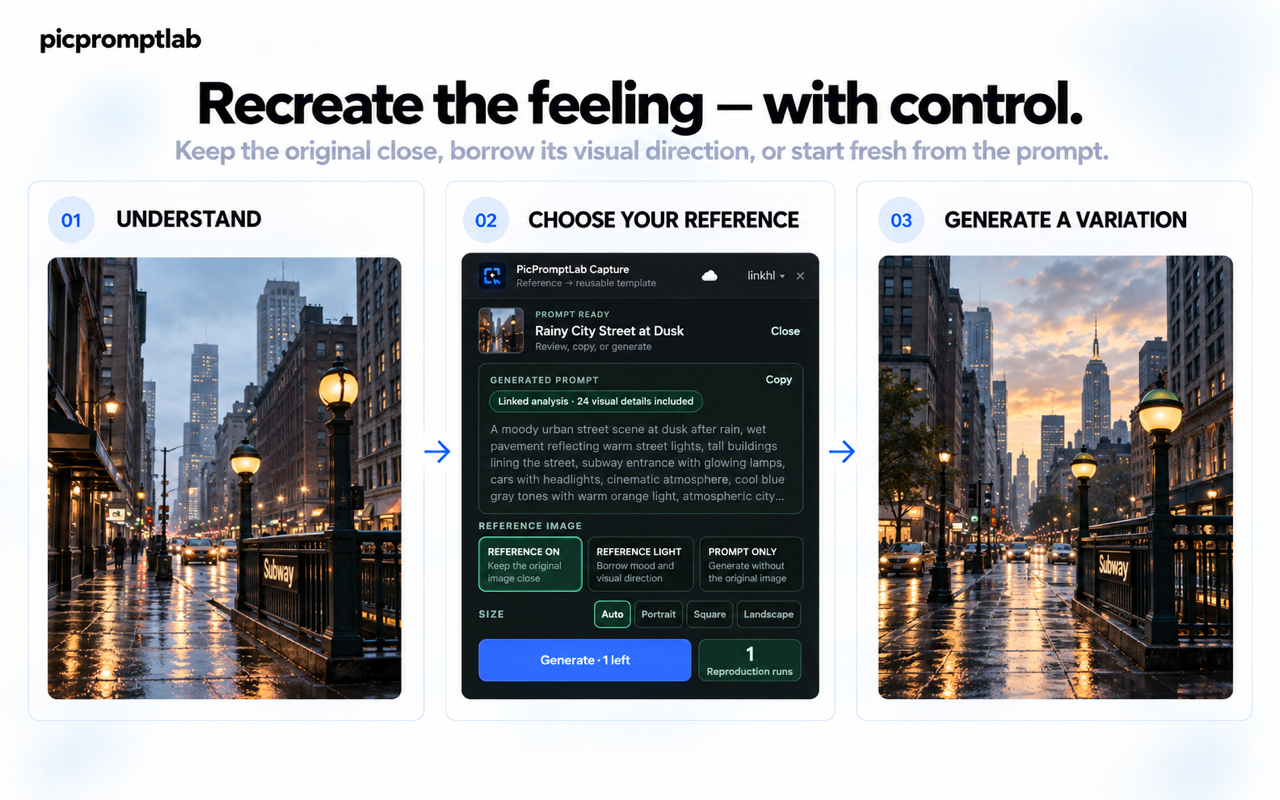
See it online.
Keep the idea.
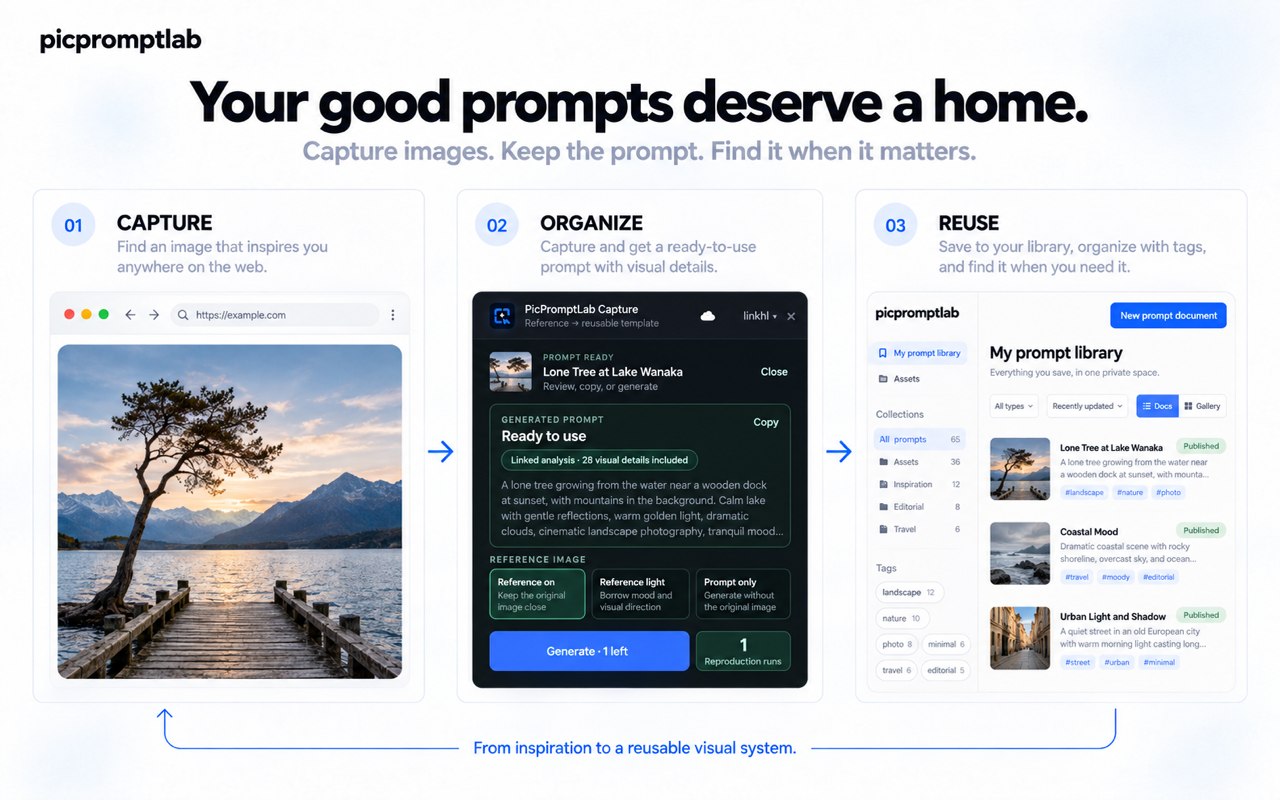
Install PicPromptLab Capture to save an image you choose, analyze its visual language, and keep the prompt in your private library. Pick the installation method that works for you.
Chrome Web Store
If the store is available, install in one click and get Chrome updates automatically.
Open Chrome Web StoreDownload the ZIP
Cannot reach the store? Download the package and follow the steps below.
Download extension ZIPFor desktop Chrome · PicPromptLab account required
Install the ZIP in four steps.
Chrome loads the extracted folder, not the ZIP file itself.
- 01
Unzip the download
Extract the ZIP to a folder you will keep. Do not move or delete that folder after installation.
- 02
Open Chrome extensions
Type chrome://extensions in the Chrome address bar and press Enter.
- 03
Enable Developer mode
Turn on the Developer mode switch in the top right.
- 04
Load the unpacked extension
Choose Load unpacked, then select the extracted folder containing manifest.json.
The manually installed version does not update automatically. Download a new ZIP for future releases, replace the extracted files, and click Reload on the extensions page.
Once installed, start with an image.
Sign in to PicPromptLab. Right-click an image and choose “Analyze image prompt.” Save the reference or run an AI analysis; your work stays in your private prompt library.
Open my prompt library